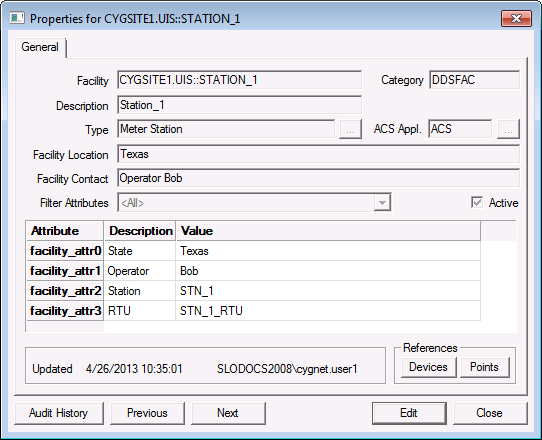
View or edit the attributes of a facility by right-clicking on the facility in the FAC and clicking Properties. Set attribute values for the facility by typing text or using the drop-down menu to select the appropriate value. View a record of previous changes by clicking the Audit History button. In order for attribute audits to be displayed the keyword AUDIT_LEVEL must be set to at least 2 in the Fac.cfg file. The Active option may be disabled on facilities that are not yet in use to allow them to be filtered out of reports and ODBC queries.
|
|
| Facility Properties |
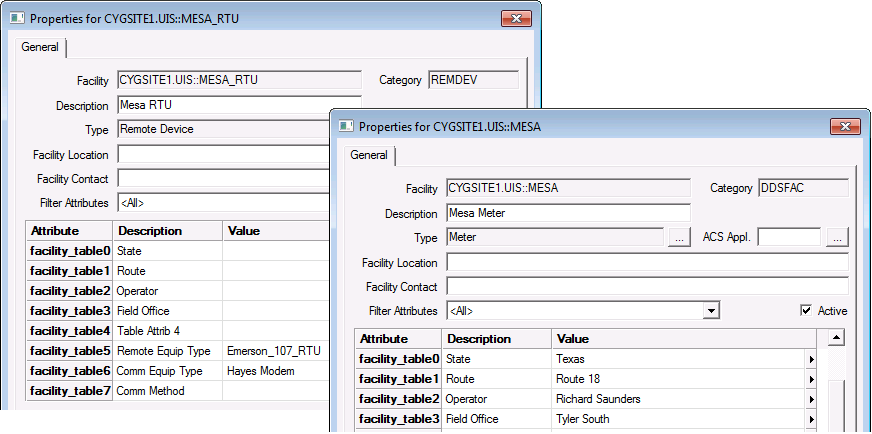
Attribute values can be assigned for a facility, although not every attribute will apply to every facility. It is important to configure attributes carefully to maximize their applicability. In the examples below, only the RTU was assigned values for the "Remote Equip Type" and "Comm Equip Type" attributes. In contrast, only the Meter was assigned values for the "State", "Route", "Operator", and "Field Office" attributes. It is important to configure facility attributes carefully
|
| Filter Attributes |
When viewing facility attributes, you can use the Filter Attributes option to filter the display to a subset of attributes. When <All> is selected, all attributes are shown. The other categories are defined by the CygNet administrator when the attributes are configured for use.

|
|
|

